Cloudfield shows three kinds of terminal in the dashboard. A session is one agent working on one task in its own sandbox; other terms are in the glossary.
| Terminal | What it is |
|---|---|
| Environment | Your own persistent shell on the server, with your home mounted at $HOME (environments.md) |
| A session's Terminal view | The agent's own terminal in a Standard session |
| Session shells | Extra shells in a session's sandbox |
You can also reach a session over SSH from your own editor.
Open your environment
aether terminal                # open the main tab
aether terminal --tab t2       # open or create another tab
aether terminal status
aether terminal stop
In the dashboard, select Environment in the header (under More
navigation on a narrow screen), or press g then e. The first open reads
Starting your environment until the shell attaches, and shows the
server's error if the start fails. Add terminal tab (+) opens another tab,
up to six. Closing a tab only detaches it. A shell that exits closes its tab.
When the main shell exits, the environment stops, and opening it starts the
same sandbox again.
Stop environment… stops the container and every tab process. Your home, saved image and unsaved changes remain. Saving, resetting and installing tools are in environments.md.
Run one command
aether terminal exec runs one command in your environment without opening a
tab. Use it from a script or a coding agent on your machine:
aether terminal exec claude --version
aether terminal exec 'echo "$HOME"; uname -sm'
The arguments are joined with spaces and run by a login shell in your home, so
$HOME and PATH match a tab. Quote the command so your local shell does not
expand it. A stopped environment is started. The command has no terminal and no
input. When it ends, its output is written to yours and aether exits with its
exit code. If aether itself fails it exits 1 and prints aether: <error>.
Two limits apply. Passing either fails the call and returns none of the output:
| Limit | Error |
|---|---|
| 10 minutes. The command and its subsessions are killed. | aether: rpc error -32603: terminal exec: the command passed the 10m0s time limit |
| 1 MiB of stdout and stderr together. The command may keep running. Redirect long output to a file. | aether: rpc error -32603: terminal exec: exec output: output passed the 1048576 byte limit |
Output is returned as text. Bytes that are not valid UTF-8 arrive as U+FFFD.
Interrupting aether does not stop the command.
Session control
Open a session from the sidebar, the board or the palette and pick Terminal in
the view switch ([ and ] cycle the views). A Standard session opens on it. The
Chat view lists messages, notes and tool calls, and while the agent works
it shows what the agent is doing with Open terminal.
An Enhanced session has no agent terminal. Its Terminal view says No agent terminal and offers run shells.
flowchart LR
    watch["Watching (mirror)"] -->|"Take control"| ctl["You control"]
    ctl -->|"Release"| watch
    other["Someone else controls"] -->|"hold Take control 3 s"| ask["They accept, deny, or 7 s pass"]
    ask --> ctl
Only one client controls a session's agent terminal at a time. You need permission to steer the session (roles) to take it. Viewing a session, or owning it, does not give you input.
- On a desktop, the owner's terminal takes control automatically when the Terminal view first opens. Opening on Session or Changes keeps it a mirror.
- Phones and other members start as read-only mirrors. Tap or click Take control to type, and Release to go back to watching.
- A second tab of your own is a different session, not a second writer. The toolbar reads You control in another session since <time>.
aether attach <session>asks for control.aether attach --read-only <session>only watches.
To take an occupied session, hold Take control for three seconds (pointer,
touch, Space or Enter). Releasing early, moving off the button or pressing
Escape cancels. The holder gets a dialog naming you. Deny keeps control and
Accept hands it over. With no answer, control transfers after seven
seconds. A plain click on an occupied session reports session control is held by another session.
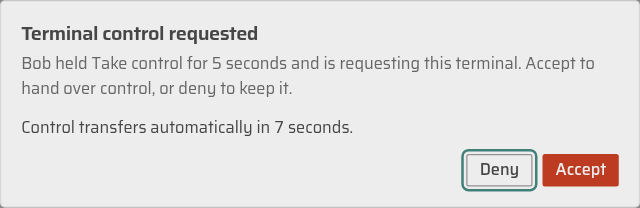
If a controller disconnects, its lease is held for 15 seconds. Only the same tab can reclaim it in that time. After that, anyone with permission can take it.
The session owner or an admin can turn on protection. It immediately removes the current controller and cancels every queued message. While protected, other members cannot message the session.
While you control a subsession, mail from its parent waits
and shows as held; it is delivered when you Release or leave the session
page, or when the lease lapses 15 seconds after the tab is killed. See
coordination.md.
The Terminal toolbar
The toolbar shows who controls the agent terminal (You control, Alice controls, Nobody controls) with Take control or Release. A name marked (last known) is stale. The connection word (Connecting, Reconnecting, Offline) shows while the attach is down. A finished session reads Sandbox removed · read-only, or Sandbox stopped · read-only when the sandbox is kept. Without permission to steer, the line under the toolbar reads You can watch this session but not type in it.
The Tools menu has Find, Smaller text, Larger text, Reset text size (on a phone, Fit to width in its place), Copy selection, Copy screen, Paste and Upload image…. Sessions add Captures…. Copy screen copies the visible rows, which is how to copy on a touch screen.
During agent sign-in, resize the Environment terminal by dragging its visible top grip or using its expand/shrink button. It stops at the height available to it.
Messages and notes
Talk to the agent in the Chat view's composer. Press Enter or Send, and Shift+Enter for a newline. Attach files (+) adds up to eight files per message.
- A message from the current controller reaches the agent's terminal at once
(Sends to the agent's terminal.), also while the controller's dashboard
reconnects, as it does when the message wakes a sleeping session. The owner
of an uncontrolled session takes the lease first, then sends. A message you
send without the lease, from the assistant,
aether messageor a connector, also arrives at once while you are the controller, reconnecting or not. - A message from anyone else waits 45 seconds (Delivers in 45 s unless the controller decides sooner.). It shows in the chat with a border in the sender's color that empties clockwise as the 45 seconds run out. Under it the controller gets Deny and Approve. While nobody controls the session, anyone else who may steer gets Take control to decide. Details → Needs you lists it too.
- The row ends as Sent, Not sent, Delivery uncertain, Denied or Cancelled. Sent means the terminal accepted the write, not that the agent read it.
- If the agent has turned on bracketed paste, the message arrives as one paste and Enter follows 200 ms later, so a multi-line message is sent whole and once. Otherwise it is typed as written, then Enter.
- Standard Codex takes the message through its app-server instead, as a new turn when idle or a steer added to the running turn (Codex). Sent then means Codex accepted it.
- Send to agent in the Changes view sends your diff comments as one such message.
aether message <session-id> "<text>"(or-for stdin) prints the receipt:delivered,queued for the member in controlwith when it is delivered, or the denial reason.- If you cannot message the agent, the composer says why: This session has finished., The agent is still starting., This session is protected: only its owner or an admin can message the agent. or You can watch this session but not message the agent.
A reported outcome leaves an interactive session open, so send a follow-up or type into its terminal. Close ends the session. Notes are for people only: the agent never sees them. Add one under Details → Add a note for people on this session.
Attachments (images up to 8 MiB, other files up to 64 MiB, eight per message)
are stored under $HOME/.aether/terminal-images/ and
$HOME/.aether/terminal-files/, and the agent receives their path.
Session shells
A session shell is an extra shell in the session's sandbox, started by a person or by the agent. + Shell in the Terminal toolbar opens one as a tab after Agent and gives you control. Shells are named Shell 1, Shell 2 and keep their number until they end. A shell the agent started carries the agent's glyph, and its tab says Started by the agent.
At most four shells started by people and four started by the agent run at once. At the limit, + Shell is dimmed and reads At most 4 shells, and the server refuses with:
shell limit reached: people have 4 shells running in this session; stop one to start anotherShells open only in a running or needs-attention session that is not paused. Otherwise you see You can view this session but not open a shell in it.
Who can type in a shell
Each shell has its own controller. Watching takes nothing, so the agent can keep driving a shell you only read.
- A shell you open is yours. In a shell nobody controls, your first keystroke takes control.
- When the agent or a teammate controls it, the toolbar names them beside Take control. Take control of this shell? asks first. The agent can take a free shell but never one from a person.
- Release releases only that shell. Leaving the Terminal view releases it for you. Switching tabs or closing the page lets it lapse after 15 seconds.
Close a shell
Use the tab's close button, or Delete or Backspace on a focused tab. A running shell asks:
- Hide, keep running detaches the tab. The process keeps running and counts toward the limit. The toolbar shows 1 hidden with Show Shell 1.
- Stop shell ends the process and removes the tab. If someone else controls it, Stop Shell 1? names them and asks first.
A shell that ends while open stays as Shell 1 · exited, with its exit code under the toolbar.
SSH and editors
A live session is also an SSH host. Run this once on your computer:
aether ssh-configwrote /home/you/.ssh/aether_config
added an Include line for it at the top of /home/you/.ssh/config
ssh <session-id>.aether now opens a shell in that session. scp, sftp, rsync and editors take the same host name.~/.ssh/aether_config holds one block that the command rewrites each time. It
names the aether binary by path, so run it again after moving the binary. The
only change to ~/.ssh/config is an Include line at the top. The host name
is the session id plus .aether, for example run-gejd5cbk74.aether. It reaches
the server your CLI is linked to. Without the config, aether ssh [ssh options] <session-id> [command] takes the same options.
[!WARNING] Use OpenSSH 9.6 or later, or a build patched for CVE-2023-51385 (
ssh -Vprints the version). Older builds run a crafted*.aetherhost name from a link or submodule URL as a command on your computer. See security.md.
| You run | In the session's sandbox |
|---|---|
ssh <host> |
A login shell in /workspace |
ssh <host> <command> |
The command through bash -c (or sh -c), output and exit status unchanged |
scp, sftp |
Cloudfield's own SFTP server. Relative paths are in the checkout. |
ssh -L, -D, -W |
A port on the session's own loopback (localhost, 127.0.0.1, ::1) only |
scp -O and rsync run those programs inside the container. The standard
image has scp and no rsync. Agent, X11 and remote (-R) forwarding are
refused.
A session's processes end with it. When the command exits or the connection drops, everything it started is stopped, including background processes. Start long-lived work from a session shell or through the agent. Pausing the session freezes its SSH connections, and new sessions are refused until it resumes.
One session takes 16 SSH connections, at most 8 from one member. One connection takes 10 sessions and 64 forwarded connections.
Editors
Open in editor… in a live session's More menu has a button per editor. It is not offered on a phone or for a finished session.
| Editor | Connect from the editor |
|---|---|
| VS Code (Remote - SSH) | Remote-SSH: Connect to Host…, then <run-id>.aether |
| Cursor | Remote-SSH: Connect to Host…, then <run-id>.aether |
| Zed | Connect New Server, then ssh <session-id>.aether |
The editor installs its own server in the container on first connection, so the
session needs a glibc Linux image (the standard image is one; Alpine is not),
outbound network, and a writable home. The server (~/.vscode-server,
~/.cursor-server, ~/.zed_server) lands in the launcher's home and is reused
by later sessions. A teammate who attaches installs theirs in your home. If the
connection drops, the editor restarts its server on reconnect, and processes in
its own terminals are gone.
Who can connect
You can connect if you may open a writable shell in the session: you may steer it, you own or were given the session's agent account (security.md), and the session is running or needs attention and is not paused. The server rechecks every three seconds and closes the connection when that stops being true. Activity shows Connected over SSH beside your avatar.
A refusal comes from aether ssh --stdio before ssh's own Connection closed by UNKNOWN port 65535:
| Message | What to do |
|---|---|
aether: ssh into <session-id>: session not found |
Check the id and the server you are linked to. |
... permission denied: session is protected: only its owner or an admin may steer |
Ask the owner or an admin. |
... permission denied: member <member-id> has not shared their account with you |
The session uses that member's agent account. |
... scheduler: the session has no live environment: the session is paused |
Resume the session. A finished session says its sandbox is gone. |
... you already have 8 SSH connections open to session <session-id>, the most one member takes |
Close one of yours. |
... session <session-id> already has 16 SSH connections open, the most one session takes |
Close one, or ask a teammate to. |
aether: "<host>" does not name a session: a session id holds only lowercase letters, digits and hyphens |
Use <run-id>.aether. |
start the port forwarding relay: the helper exited 125: dev-exec: expected ... |
The session was created before this server version. Launch a new session. |
aether: not linked; run aether link <host:port>, or aether login and then aether link --claim <code> |
Link this computer first. |
ssh: Could not resolve hostname <session-id>.aether |
Run aether ssh-config. |
Sign in to agents and set up GitHub
The Agents page and onboarding show the login or install command above the terminal. Copy the command, paste at a shell prompt, review it, then press Enter. Login state lives in your home, so you do not save the environment. See environment-home.md and GitHub.
For a login that opens a browser, click the OAuth URL printed in the terminal.
In the CLI, first run aether forward terminal <callback-port> in a second
terminal on your computer: the environment has no aether command. Device-code
logins, gh auth login --web among them, need no forward.
Install tools in the environment, then Save environment (or aether env save) so new sessions get them. See
environments.md.
Keys and touch screens
These work in every terminal Cloudfield draws, when it has focus:
| Key | What it does |
|---|---|
Ctrl+Shift+C |
Copy the selection. Plain Ctrl+C copies when text is selected and interrupts otherwise. |
Ctrl+Shift+V, Ctrl+V (Cmd+V on macOS) |
Paste |
Ctrl+Shift+F |
Find. Enter next, Shift+Enter previous, Esc closes. |
Ctrl+= / Ctrl+- |
Larger or smaller font, 8 to 32 px, kept across terminals and reloads |
Ctrl+0 |
Default 12 px font |
On a touch screen, a key row below the terminal has Ctrl, Alt,
Esc, Tab, the arrows, Enter and More keys. More keys
opens the rest, and stays open until you tap it again or outside: |, ~, /, \, -, _, `, ^, ^C,
Home, End, PgUp, PgDn, Del, F1–F12 (which shows the
function keys), Show keyboard, and the text size: A−, the current
size with Fit, and A+. Ctrl and Alt are sticky: tap once and
they apply to the next key, so Ctrl then d sends Ctrl+D; tap twice
quickly to lock one on (it shows a lock) until you tap it again. They also
modify the arrows, Home/End, paging and function keys.
On a phone:
- The keyboard opens only when you tap the terminal or Show keyboard. Opening a session, switching tabs or tapping a key row key never raises it.
- Text fits the screen's width. A phone shows the session at the size the other viewers gave it, so instead of panning across 80 or more columns it draws the text smaller until the whole width fits, down to 7 px. A+, Tools → Larger text or a two-finger pinch choose a larger size, kept on that device; A− steps back down, and from the smallest size, Fit, Tools → Fit to width or pinching back in fit again. Swipe to reach the parts of a grid wider than the screen at the size you chose.
- An Enhanced session's Terminal tab shows a shell that is already running in the session's sandbox. If none is, it says "No agent terminal" and offers Open shell; viewing the tab starts nothing. With four shells running, it says so under the button.
- To copy, choose Tools → Copy screen.
- A phone opens every session as a read-only mirror, so tap Take control before the keyboard can send input.
Paste or upload an image
Paste an image straight into a terminal that accepts input, or choose Tools → Upload image…. The Upload image to terminal dialog previews it. Select Upload and insert. Cloudfield stores the file in your home and types its path, quoted, without pressing Enter. Review the path, then press Enter yourself.
Only real image bytes work: PNG, JPEG, GIF or WebP up to 8 MiB. The server
checks the decoded bytes, not the filename. Some clipboard managers copy only a
path such as C:\Screenshots\shot.png. That is text, and a remote container
cannot read your local disk, so choose the file in the chooser instead.
Failures read Upload failed: or Pasting image failed: with the detail.
Upload image… is disabled while the terminal is a read-only mirror, connecting, reconnecting or offline, or the session is starting. Take control first.
To delete an uploaded file, use the exact generated name and no wildcard:
rm -- "$HOME/.aether/terminal-images/image-<random>.<ext>"
rm -r -- "$HOME/.aether/terminal-files/<random>"
Stopping or resetting the environment keeps these files. Nothing cleans them up automatically.
Scrollback and history
Scroll up in a session terminal to read older output in the same pane (PageUp,
Home, or Shift+PageUp inside a full-screen app). Arrows, PageUp, PageDown
and Home navigate while reading. Scroll to the bottom or press End to
return to live output. While reading, typing and paste are off and Find searches
the pages loaded so far. Older pages are recorded text, not the original screen
layout, so some lines can appear on both sides of the boundary.
The server keeps a session's terminal recording until you delete the session or
terminal. Closing the container, reclaiming the checkout and archiving do not
remove it. If earlier output has expired, history is marked truncated and
cannot be recovered. aether logs <session-id> [--limit N] prints the recorded
terminal lines as plain text, and an Enhanced session's messages and tool calls,
one line each. aether attach is a raw stream that replays retained
output and discards keystrokes typed before the replay finishes.
Reconnects and server updates
The terminal reconnects and restores its output when the page or network comes back. If it cannot continue where the screen left off, you get the current screen instead. A finished session opens from its final screen and stays read-only unless you reopen the session.
The environment survives a server restart or update, and unsaved changes stay. A session keeps the Cloudfield helper it was created with, so SSH features added by a later server need a new session.
Session shells, and terminals the agent starts with aether-internal terminal start, survive a server restart or update too. Each runs under a keeper: an
aether-internal acp-keeper term process in the session sandbox, started as
root from the staged server binary, that owns the shell's PTY, starts the
shell as the session's user and keeps the newest 1 MiB of its output. The server
attaches to it through a short-lived aether-internal acp-keeper attach exec
and a token only the server holds. When the next server process recovers the
session, or, for a session paused during the restart, when it resumes, it
reattaches and replays the kept output: the same process keeps
running, typing, resize and Ctrl-C work, terminal output continues from a
cursor taken before the restart, and terminal wait reports the real exit.
Output older than the kept 1 MiB is lost, and reading from a cursor before it
reports truncated. Input to a kept terminal returns once the shell's PTY
took it. Input the shell does not read before the call times out fails, and
the keeper drops what is left of it, so it never reaches the shell after
another holder took control; if the keeper does not confirm the drop within
2 seconds, the server ends its attachment and reattaches. A failed reattach
reads reattach to the terminal's keeper: <error>, and the next terminal
call on that terminal tries again; once one succeeds, the lease recorded
before the restart is restored as below. Control of a kept terminal survives too: the server
records each lease's holder, control_session_id and control_generation
in the session's terminal registry under the server's state directory when
it is acquired, released or revoked, and the next server restores it. A lease the agent took
with aether-internal control acquire comes back as it was, so its next
terminal input with the same generation is accepted however long after the
restart it arrives. A person's lease comes back disconnected for 15 seconds,
in which the same browser tab reconnects and keeps control; after that it
lapses. Anyone else is fenced exactly as before, and a person can still take
control. A lease on a terminal that exited, or in a session that closed,
during the restart is dropped. When the shell exits while no server is attached, the
keeper holds its exit status for the next server for up to 31 seconds, and
background jobs the shell left behind run until the keeper exits.
A shell started by a server without terminal keepers, or in a container whose
staged binary predates them, keeps running through a restart, but its screen,
output and input are gone. It reads PTY unavailable after recovery; execution was not reattached or restarted; stop it and start another.
Cloudfield starts a terminal without a keeper only when the staged binary
answers unknown command: acp-keeper. Any other keeper failure fails terminal start with start the terminal keeper: <error>, because the keeper may already
have started the command.
Docker restarted with live-restore forgets every exec but not its
processes: Cloudfield then reads a terminal's state from its exec helper in the
container, so a running terminal is never reported exited and terminal stop still stops it. A terminal whose process is provably gone, because its
container stopped, reads exited with the reason; stopping it removes it
without taking control first, and closing the session is not blocked by it.
If the exec helper died without recording an exit, jobs the command forked can
still run, so the terminal stays unavailable with execution control unavailable and terminal stop fails with that error. Closing or completing
the session is not blocked: the terminal is recorded as lost with no exit
status, and its leftover jobs are frozen or stopped with the session's
container. Reopening a retained session resumes them. A lost terminal counts
against the shell limit until its container stops.
Limits
- Six environment tabs, and four people's plus four agent shells per session.
aether terminal exec: 10 minutes and 1 MiB of output.- SSH: 16 connections per session, 8 per member.
- Images up to 8 MiB, other message files up to 64 MiB, eight per message.