A task in. A branch out.
Cloudfield runs coding agents on a Linux server you own. Each task gets its own container and its own branch. Follow it from any client, answer it when it needs you, and bring the branch back when it is ready.
One server, and a client wherever you are
The server is a Linux machine with Docker and git. It holds your repositories, runs every agent in a container of its own, and keeps going when your laptop is closed.
- The server runs every agent, each in a container of its own.
- Clients attach and leave. The server keeps going.
- Your phone can tell you when a session needs you.
You link a machine to it once
The first person to link a fresh server becomes its super admin: on a tailnet Tailscale says who you are, elsewhere your SSH key does, or you sign in with GitHub through Cloudfield Edge, which needs no open port on the server. Teammates join after that, by invitation or an admin's approval.
The CLI
On Linux, macOS or Windows. Launch sessions, attach to their terminals, message agents, pull branches and close sessions from a shell.
The desktop app
The dashboard in its own window, with a notification when a session needs you. The CLI installs it: on Windows it downloads the release's prebuilt app, on Linux and macOS it builds the app on your machine. The install scripts can do this for you.
A browser tab
The CLI serves the same dashboard from your machine, so the page can pull a session's branch into your clone.
Your phone
On a tailnet the server can host the dashboard for any device, and that dashboard in your phone's browser can tell you when a session needs you. The Android app opens it full screen over Tailscale or Cloudfield Edge, and notifies you through a UnifiedPush app such as ntfy.
Type a task, pick an agent, launch
A session is one agent on one task, in a container on the server with its own git checkout and its own branch.
Read the quickstartSee it in the app
- Type the task and pick an agent.
- Launch starts it in its own container.
- The agent reads the code and works on the session's own branch.
Every task runs in its own container
Your home on the server is mounted into the session's container, so the agent has its login and your settings. You pick the agent and a mode when you launch the session.

- Standard opens the agent's own terminal, as it runs on your machine.
- Enhanced drives the agent over the Agent Client Protocol and shows its plan, messages, tool calls and diffs as controls of their own.
- Background runs the task once with no interaction, then commits, publishes the branch and finishes.
- In every mode the agent works without permission prompts by default. The container is the boundary.
The board shows which sessions need you
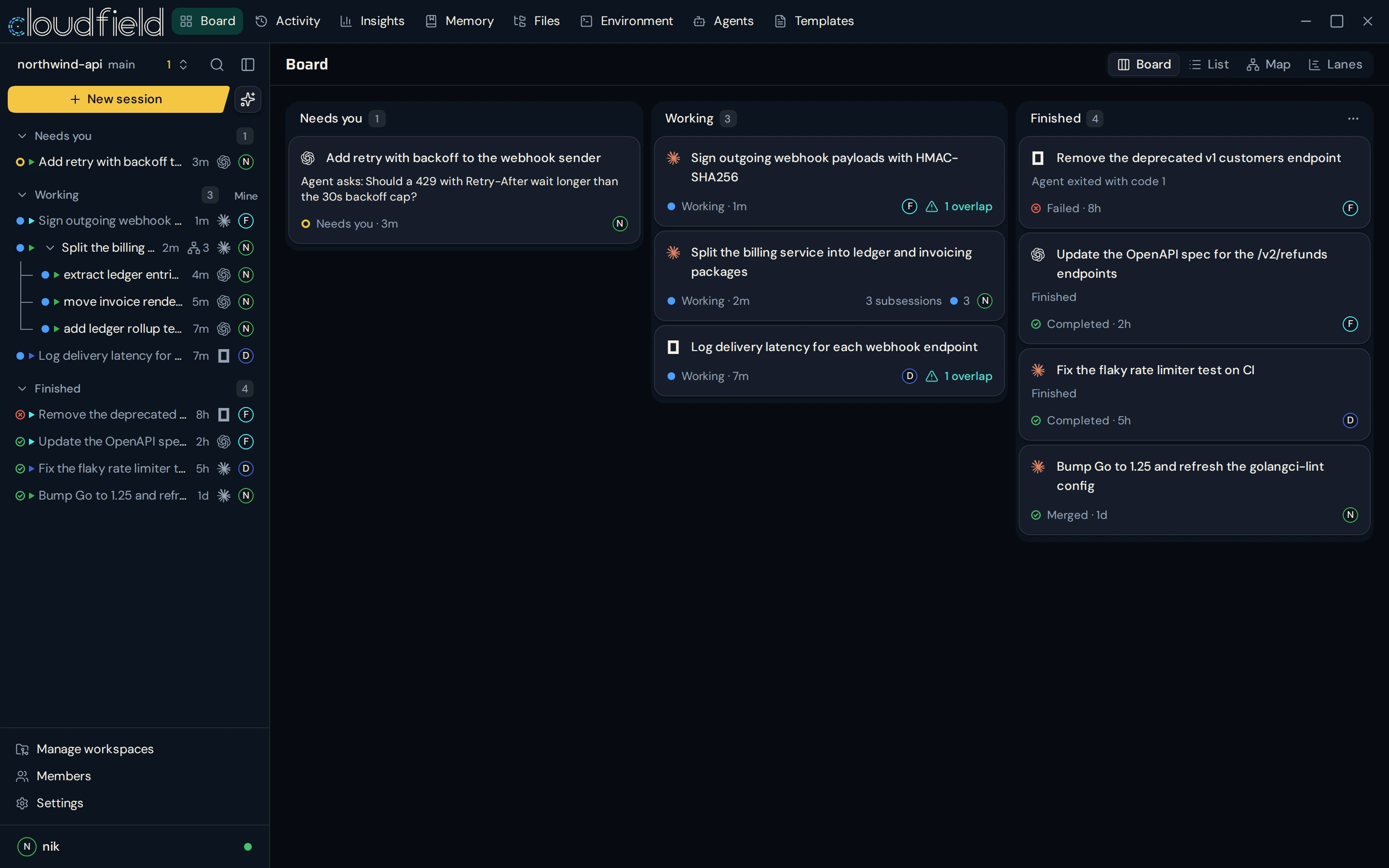
The board sorts every session into Needs you, Working and Finished. A session moves to Needs you only when a person has to act, and its card says why. Waiting on CI or on its own agents still counts as Working.

- Needs you: the agent asked a question or reported it is blocked. Reply from the card, or open the session.
- Finished, for review: the agent reported success. The session stays open, so a message keeps it going.
- Mark complete closes the session as completed. Close records it as merged or abandoned.
- A closed Standard or Enhanced session keeps its container for seven days by default and can be reopened. Its branch stays.
Close your laptop and it keeps going
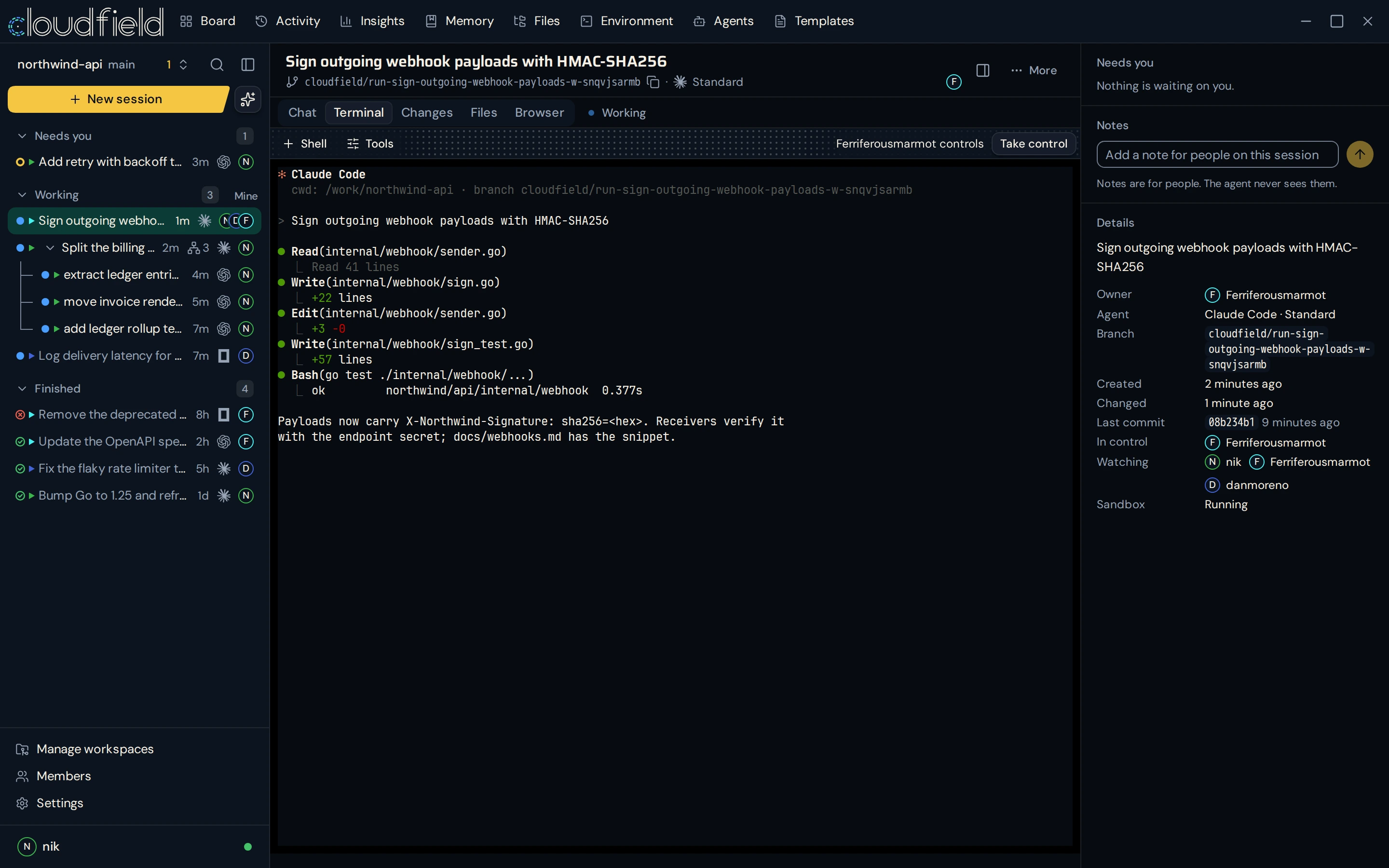
The server supervises the session's container and owns its terminal, so closing a client does not stop the session. Reconnect from the CLI or the dashboard to continue watching or steering it.
- Close your laptop.
- The session keeps going on your server.
- Reconnect to keep watching or steering it.
Review it like any other change
When the agent reports it is done, the session waits for you. Read the diff in the app, send review comments back to the agent, then push the branch and open a pull request, or pull it into your clone.
Reviewing and publishingSee it in the app
- Read the session's branch against main.
- Comment on a line and send it to the agent.
- Push the branch and open a pull request, or pull it into your clone.
Review the branch, then land it your way
Changes shows the session's branch against the base. Comment on lines and send the comments to the agent as one message. Publish commits, pushes the branch and opens a pull request with your GitHub login, and the session then shows the pull request's checks. Cloudfield never merges a session on its own.

- Pull fetches the session's branch into your clone from the desktop app, the local dashboard or the CLI. It never switches your checkout.
- A failing check or a review comment on the pull request can go to the agent as a message.
- When the pull request merges, close the session as merged.
One session, several repos
One session can work across several repos. Add them when you launch it, and the agent changes them together, with a branch in each.
Working across reposSee it in the app
- One session forks into a lane per repo.
- Each change lands in all of them together.
- A branch in each. No merge.
Keep your own agent
An agent definition tells Cloudfield how to start an agent's CLI in each mode and where its login lives. Cloudfield ships definitions for Claude Code, Codex and many more agent CLIs, which the guide lists, and you can register a definition of your own.
- A definition says how to start an agent's CLI in each mode.
- And where its login lives.
- Register a definition of your own.
Installed only when you ask
Cloudfield installs an agent only when you ask, into your environment on the server.
Claude Code
--agent claudeEnhanced through an adapter. Login in
~/.claude/.credentials.jsonCodex
--agent codexEnhanced through an adapter. Login in
~/.codex/auth.jsonpi
--agent piEnhanced through an adapter. Login in
~/.pi/agent/auth.jsonoh-my-pi
--agent ompEnhanced built into the CLI. Login in
~/.omp/agent/OpenCode
--agent opencodeEnhanced built into the CLI. Login in
~/.local/share/opencode/auth.jsonGitHub Copilot CLI
--agent copilotEnhanced built into the CLI. Login in
~/.copilot/config.jsonGemini CLI
--agent geminiEnhanced built into the CLI. Login in
~/.gemini/oauth_creds.json, ~/.gemini/.envCursor CLI
--agent cursorEnhanced built into the CLI. Login in
~/.config/cursor/auth.jsonAntigravity CLI
--agent antigravityNo Enhanced mode. Login in
~/.gemini/antigravity-cli/antigravity-oauth-token






The list is not closed. Any other CLI can be a session's agent: register it as a custom agent with aether agent add.
Each logo is its maker's trademark, shown only to name an agent Cloudfield can launch. Claude is a trademark of Anthropic, the OpenAI mark is a trademark of OpenAI, and Gemini CLI and Antigravity are trademarks of Google LLC. Cloudfield is not affiliated with these companies or endorsed by them.
Keep logins on the server
You sign your agents in from your environment terminal, and their logins stay in your member home on the server.
Steer a session from a chat
Add Cloudfield as a connector in ChatGPT or Claude, the phone apps included. The connector acts as you, under the same role checks as the app.
ChatGPT and Claude connectorsSee it in the app
- Ask what a session is doing.
- Tell it what to change. The app asks before it messages the session.
- The message reaches the agent at once.
Every session in one window
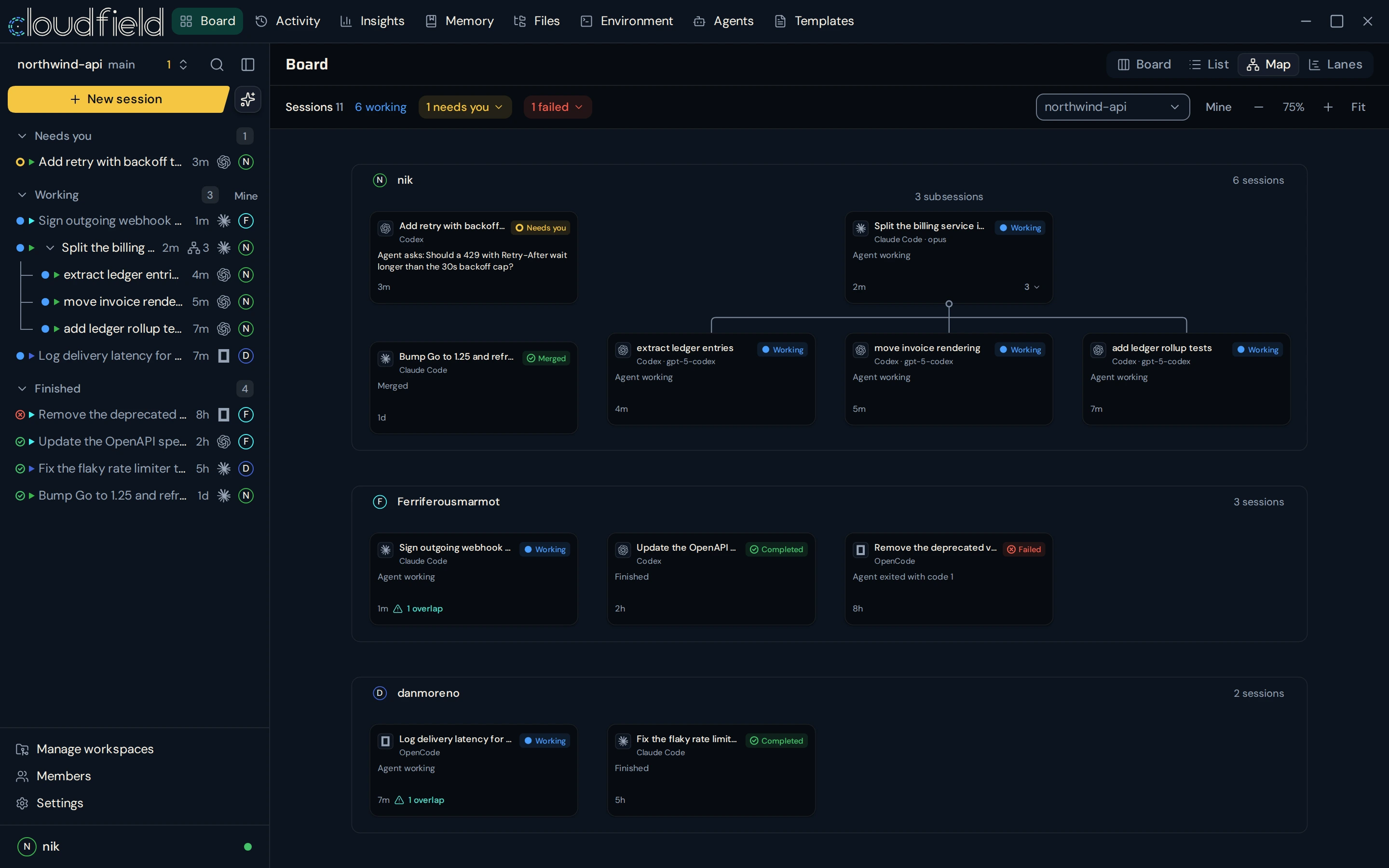
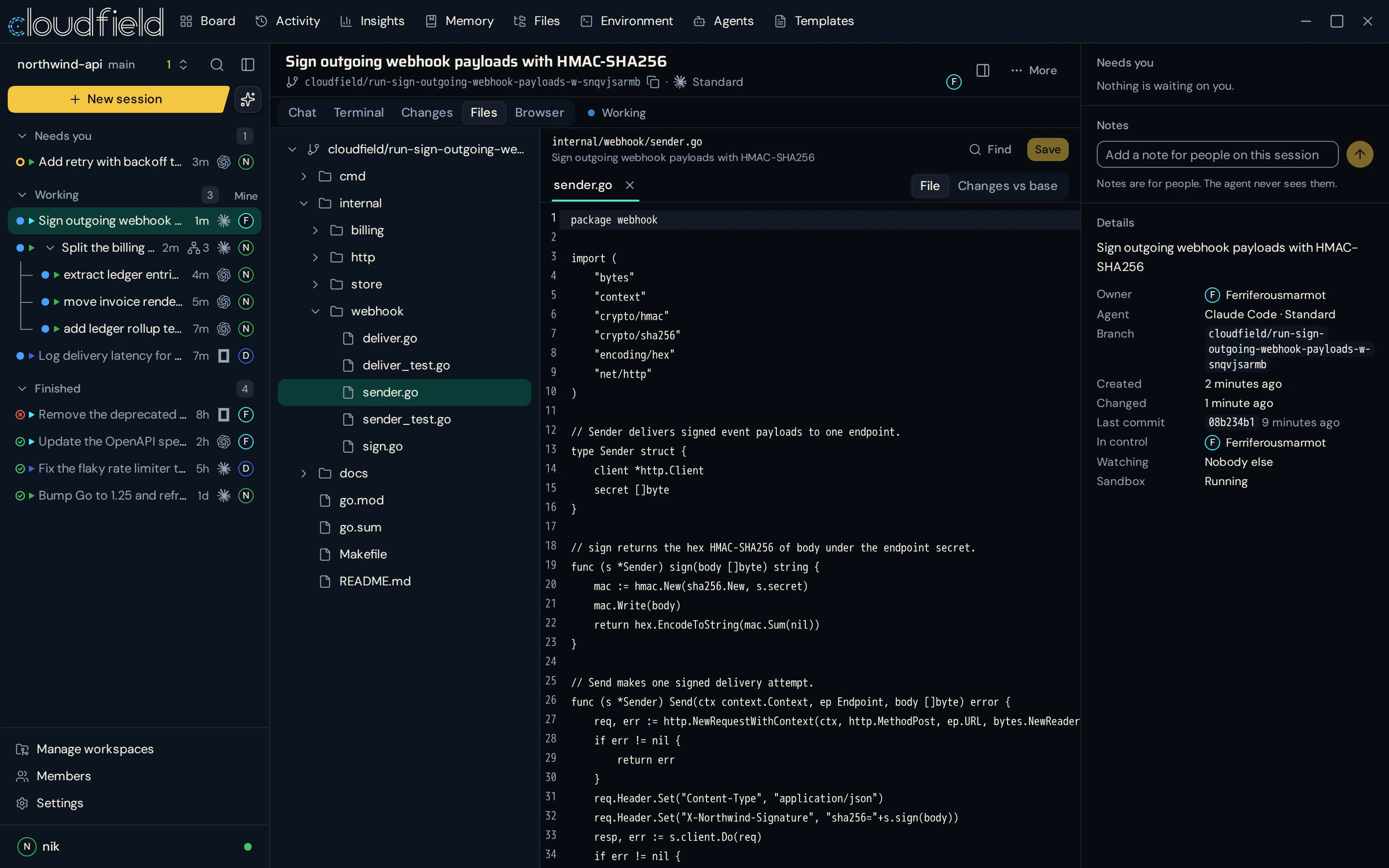
The desktop app, the local dashboard and the dashboard your server hosts are the same app: a workspace switcher over its sessions, the Board and its Map, and for every session its chat or terminal, its changes, the files in its checkout and its browser.
Start with one session
The server needs Linux, Docker and git. Install Cloudfield, then follow the quickstart to connect a client, prepare an agent and review your first branch.